
SOLAR SecureClient Centre User Guide
SecureClient is a standalone application that delivers SOLAR assessments securely in lockdown mode. It can also deliver assessments offline after you have downloaded them.
Instead of using a web browser, candidates access assessments through the SecureClient application on a Windows laptop or desktop computer. When SecureClient opens, candidates are taken to the SecureClient Keycode Login screen.
SecureClient locks down the device during an assessment. This prevents candidates from accessing other software or online resources. It also protects against internet and device failures. If the internet connection is lost during an assessment, SecureClient stores the candidate’s responses and uploads them to Surpass when the connection is restored.
SecureClient may not support assistive technologies because it locks down the device. If candidates need assistive technology, we recommend delivering assessments through a web browser instead of SecureClient.
You may need to configure devices and network settings before using SecureClient. If a third party manages your devices or network services, you may need to work with them to make sure SecureClient functions correctly.
Before delivering SOLAR assessments, you must:
- read the SOLAR Centre Operating Guide
- make sure all devices meet the minimum system requirements
- test all devices to make sure they function correctly
To deliver assessments using SecureClient, you must request access by completing the Digital Assessment Services Helpdesk Support Form.
If you need more information or support, contact the Digital Assessment Services Helpdesk:
- Complete the: Digital Assessment Services Helpdesk Support Form
- Email: das.helpdesk@qualifications.gov.scot
Installation
System Requirements
SecureClient can only be installed and used on devices that meet the minimum system requirements.
View the system requirements for SecureClient.
SecureClient for Windows
The following Windows settings must be disabled before launching SecureClient:
- Text suggestions (when typing on a physical keyboard)
- Multilingual text suggestions
- Autocorrect for misspelled words
- Highlight for misspelled words
To disable these settings:
- On Windows 10: Go to Settings, Devices, and then Typing
- On Windows 11: Go to Settings, Time & Language, and then Typing
Installing SecureClient
To download and install SecureClient, you must be logged in to your device as an administrator.
Before you install SecureClient, we recommend you review the configuration instructions. These explain the antivirus settings, network restrictions and third-party provider consideration you may need to address.
Our Digital Assessment Services Helpdesk will email you a link to download SecureClient.
1. Select the SecureClient for Windows link. The download starts automatically in your default browser.
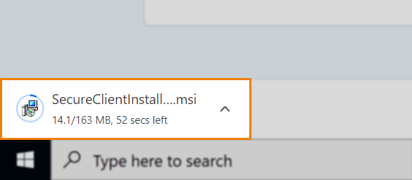
2. When the download is complete, open the SecureClient installer from your device to start the installation.
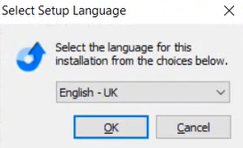
3. In the Select Setup Language dialogue box, choose your preferred language from the drop-down menu and select OK.
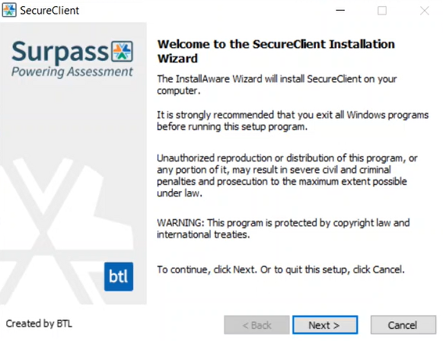
4. In the SecureClient Installation Wizard, select Next.
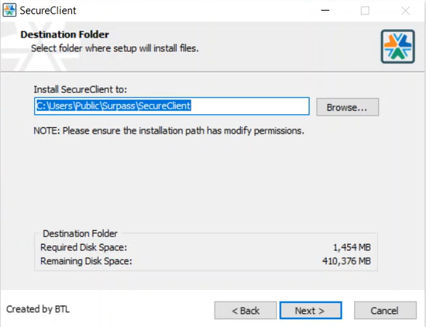
5.Select Browse to choose an installation location for SecureClient, then select Next. If you are unsure, leave the installation location as the default.
6. Select Finish to complete the installation.
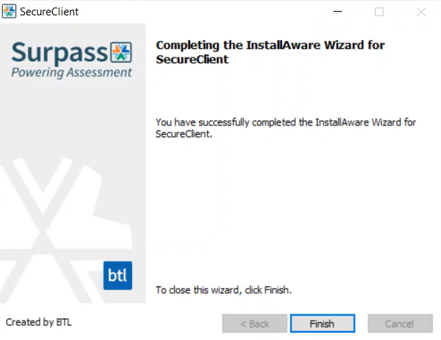
7. When the installation is complete, you can launch SecureClient from your device.

Configuration
To make sure SecureClient functions correctly, you may need to configure your device and network settings.
Antivirus
Antivirus software may prevent SecureClient from opening or functioning correctly.
To avoid this, add the installation folder to your antivirus software’s exclusion list:
- Windows: C:\Users\Public\Surpass
Note: This is the default SecureClient installation location. If you selected a different location during installation, add that folder instead.
External Applications
You must close all other applications on the device before starting SecureClient.
User Profiles (Windows)
Consider creating dedicated user profiles for devices used to deliver live assessments. This can help minimise potential conflicts.
Centre system administrators may wish to create a dedicated user profile that can be used across all devices used for live assessments. This profile should contain only the latest version of SecureClient.
Local Data
SecureClient saves assessment data locally. By default, it stores the data in:
- Windows: C:\Users\Public\Surpass
Do not delete or modify any files in this folder. This helps make sure that assessment data can be retrieved if required.
If you selected a different location during installation, this guidance applies to that location instead.
Whitelisting
To make sure SecureClient functions correctly, centre system administrators must whitelist the following Surpass website URLs:
- https://myaccount.surpass.com/
- https://myaccount.surpass.com/launchtest/
- https://cms.surpass.com/
- https://cmspublic.surpass.com/
- https://demo.surpass.com
This allows SecureClient to access the resources required to deliver assessments without interruption from firewall or security settings.
If your centre uses a third-party provider, they must ensure that:
- the required website URLs are whitelisted
- SecureClient installation and updates are not restricted.
Opening SecureClient
Open SecureClient from your desktop or start menu – it will be in a Surpass folder – or by searching for it in the taskbar.
SecureClient Updates
Updates to SOLAR and SecureClient are published on the SOLAR website.
SecureClient checks for updates when it starts. When an update is available, launch SecureClient and it will update automatically.
If you do not keep SecureClient up to date, you may experience issues using the software and delivering assessments. Check the SOLAR website for update notifications or launch SecureClient at least once every three months to make sure it stays up to date.
Testing
Before scheduling and delivering live assessments using SecureClient, you must make sure that all devices meet the minimum system requirements and have been tested.
After installing SecureClient, you must run a practice assessment to confirm that the software and devices are working as expected.
Scheduling
Scheduling assessments for delivery through SecureClient is the same as scheduling any other SOLAR assessment.
See the scheduling assessments guidance for more information.
Downloading Assessments for Offline Delivery
When SecureClient opens, the Enter Keycode screen is displayed.
From this screen, you can download assessments to SecureClient for offline delivery. Centre staff should download the assessments before the scheduled start time.
After the assessment has been completed, SecureClient uploads the candidate’s responses to Surpass SOLAR when an internet connection is available.
Troubleshooting
If you experience issues accessing or using SecureClient, refer to the SecureClient troubleshooting information on the Surpass website: https://help.surpass.com/secureclient/secureclient-troubleshooting.
If you are unable to resolve the issue, contact the Digital Assessment Services Helpdesk.