Candidate Guidance
SOLAR (Scottish OnLine Assessment Resources) is Qualifications Scotland's digital assessment platform, used to complete assessments on a computer or other digital device.
This guidance explains how to access and complete SOLAR assessments.
Practice SOLAR assessments are also available. If required, your centre can schedule these for you.
Accessing Your Assessment
This section explains how to access your SOLAR assessment.
Starting your assessment
-
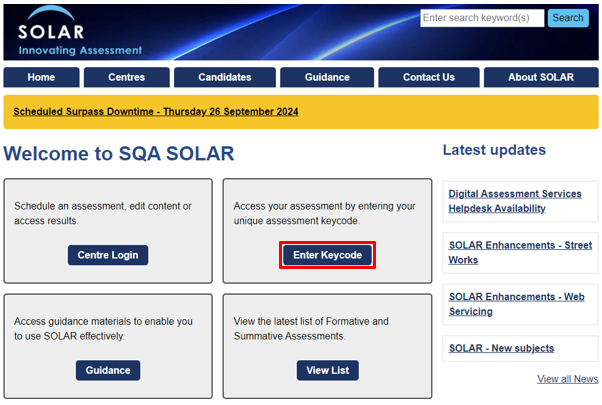
Open the SOLAR website homepage and select Enter Keycode.
-
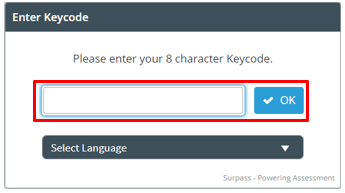
A separate tab will open in your browser. In the Enter Keycode dialogue box, enter the keycode provided by your centre and select OK.
-
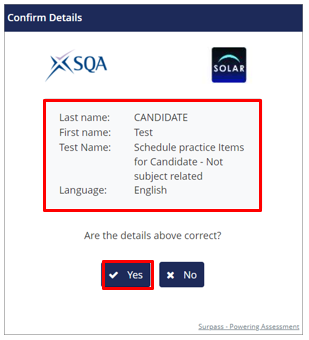
The Confirm Details dialogue box will display your personal details and assessment information.
-
If the details are correct, select Yes to continue.
-
If the details are incorrect, select No and contact your centre.
-
-
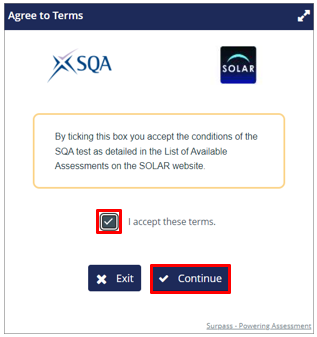
In the Agree to Terms dialogue box, select the checkbox to confirm that you accept the Terms and Conditions of the Qualifications Scotland test, then select Continue to begin the assessment.
-
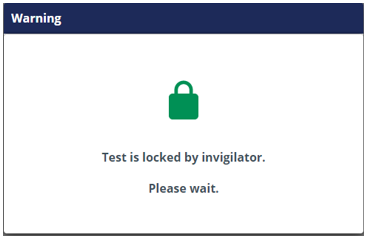
If your assessment has been set up for invigilation, a Warning dialogue box will appear indicating that the test is locked. Your invigilator will unlock the assessment when ready.
-
The assessment will now begin.
Completing Your Assessment
This section explains how to complete your assessment, including how to navigate the assessment, flag questions and tasks, and adjust colour and contrast settings.
An assessment may be:
- a test or exam taken on a specific day, usually within a set time limit, or
- a project completed over a longer period and accessed multiple times.
Navigating a test
This section explains how to navigate through a SOLAR test.
-
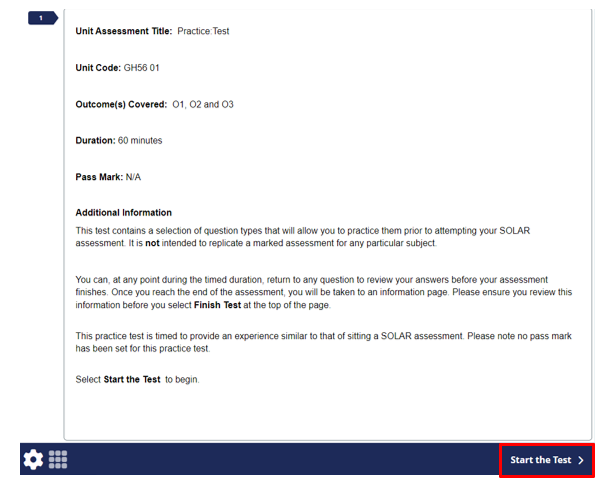
When you first access a test, one or more introduction pages will be displayed. You must read this information before starting the test. If the test is timed, the time limit will be shown, and the timer will not begin until you select Start the Test.
-
If the test is timed, the remaining time will be displayed at the top of the screen. Your progress will be shown in the top left-hand corner.

-
If your assessment is split into sections, these will be displayed on the left-hand side of the screen. Select a section to navigate to it.

-
Question and task numbers are displayed on the left-hand side of the screen. Select a number to access the question or task. Information pages are marked with an ‘i’ icon.

-
You can also select Back or Next at the bottom of the screen to move to the previous or next question or task.

-
When you complete a question or task, the icon displaying its number on the left-hand side will change colour from dark blue to purple. If a question or task requires multiple responses, the icon may change to purple after only one response has been completed.

-
Select the flag icon at the bottom of the screen to flag a question or task. This indicates that you want to return to it later. Select the flag again to remove it.

-
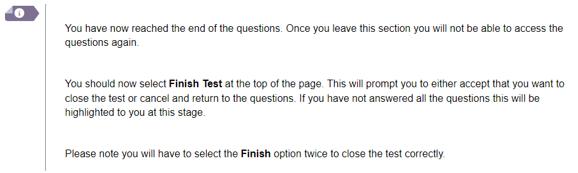
After the final question or task, an information page will confirm that you have reached the end of the assessment.
-
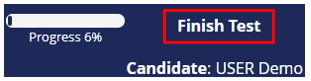
Select Finish Test in the top right-hand corner of the screen when you have completed your test.
-
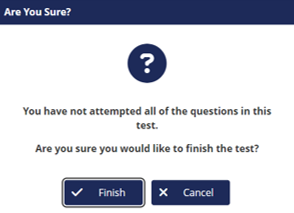
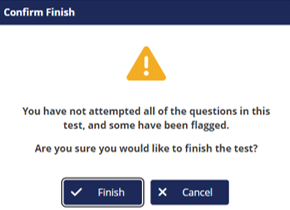
Two prompt windows will appear. Select Finish in the first window, then select Finish again in the second window to confirm you have finished your test.
-
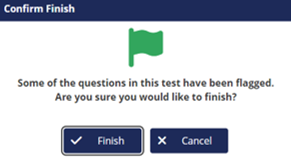
If you have not answered all questions or tasks, or if any are flagged, a warning message will be displayed.
-
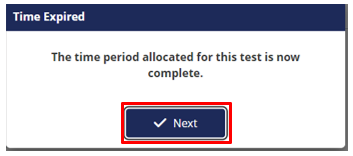
If you reach the end of the allocated test time, the test will automatically end and a Time Expired message will be displayed. Select Next.
-
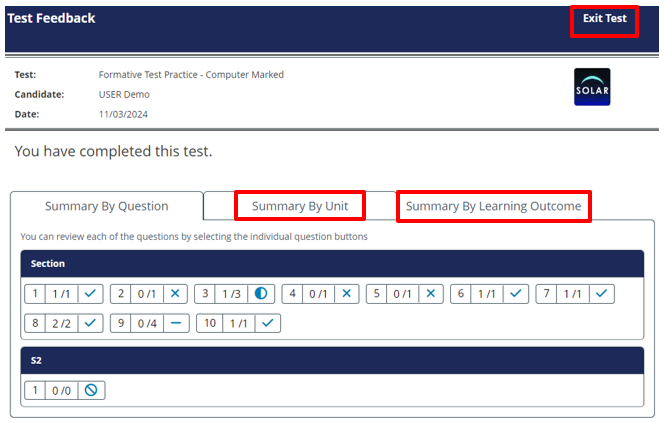
A finish page will be displayed with information confirming the end of your test. Select Finish Test in the top right-hand corner of the screen.

14. End-of-test summaries are only available for some assessments. If a summary is available, it will be displayed.
- If all the questions and/or tasks are automatically marked, you will see your test result along with an indication of whether your responses were correct, incorrect, or partially correct.
- If some or all questions or tasks require human marking, your centre will mark these and provide your test result later.
- Select Summary By Unit or Summary By Learning Outcome to view results grouped by unit or learning outcome.
Select Exit Test to leave the test.
Navigating a project
This section explains how to navigate through a SOLAR project.
-
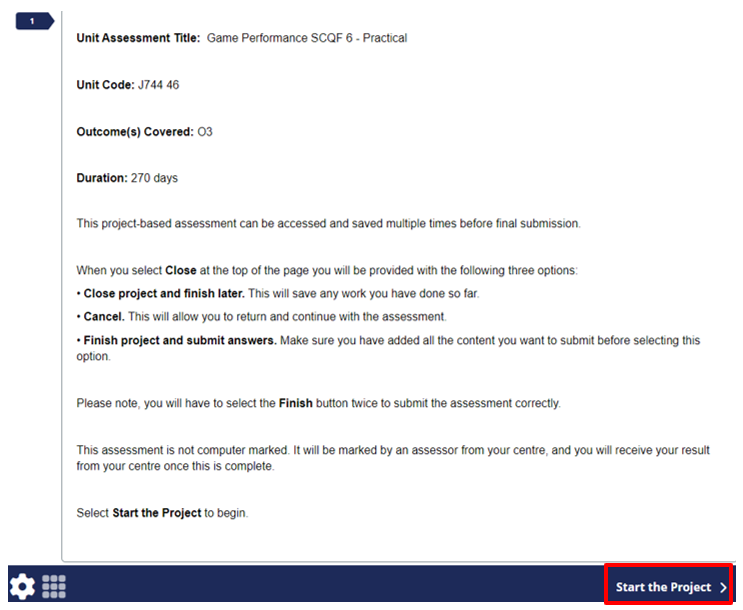
When you first access a project, one or more introduction pages will be displayed. You must read this information before starting your project. Select Start the Project to proceed.
-
Task numbers are displayed on the left-hand side of the screen. Select a task number to access it. Information pages are marked with an ‘i’ icon.
-
You can also select Back or Next at the bottom of the screen to move to the previous or next task.

-
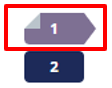
When you complete a task, the icon displaying its number on the left-hand side will change colour from dark blue to purple. If a task requires multiple responses, the icon may change to purple after only one response has been completed.
-
Select the flag icon at the bottom of the screen to flag a task. This indicates that you want to return to it later. Select the flag again to remove it.

-
After the final task, an information page will confirm that you have reached the end of the assessment.

-
Select Close in the top right-hand corner of the screen to exit the project. You will then have the option to Close project and finish later, Finish project and submit answers, or Cancel, which allows you to return to and continue with the project.
-
If you do not submit your project by the submission date, any work you have completed up to that point will be automatically submitted.
-
A summary of your project will be displayed. Your centre will then mark your project and provide your result later. Select Exit Project to close your project.
Assessment colour and contrast
This section explains how to change the colour and contrast settings in your SOLAR assessment.
-
After you access an assessment, you can change the colour and contrast settings before you start or at any time during the assessment. Select the preferences icon to view the available options.

-
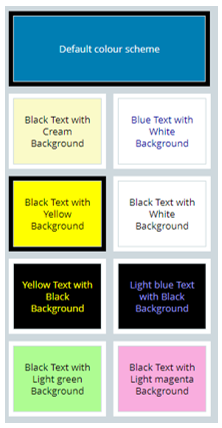
Several colour schemes are available. Select the one that works best for you.
-
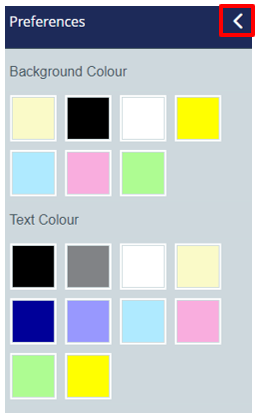
To choose specific background or text colours, select the preferences icon at the top of the screen.

-
Select your preferred background and text colours then select the back arrow at the top of the screen to return to the main preferences menu.
-
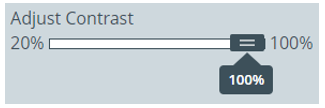
Use the contrast slider at the bottom of the screen to change the contrast.
-
Select Apply to save your changes.
Answering questions and completing tasks
This section explains how to answer questions and complete tasks during a test.
-
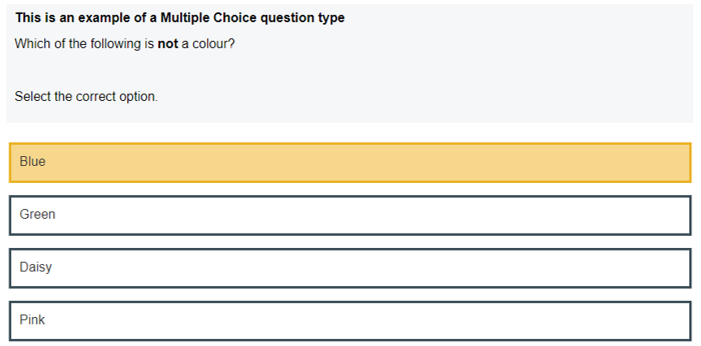
Multiple Choice question: Select an option to record your answer. To change your answer, select a different option.
-
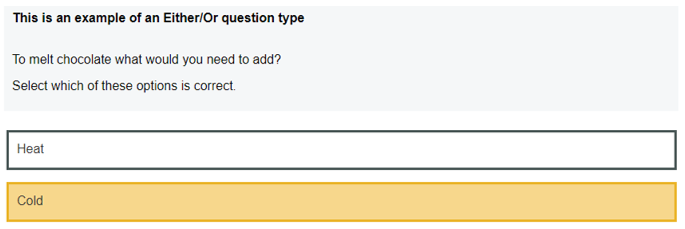
Either/Or question: Select one option to record your answer. To change your answer, select the other option.
-
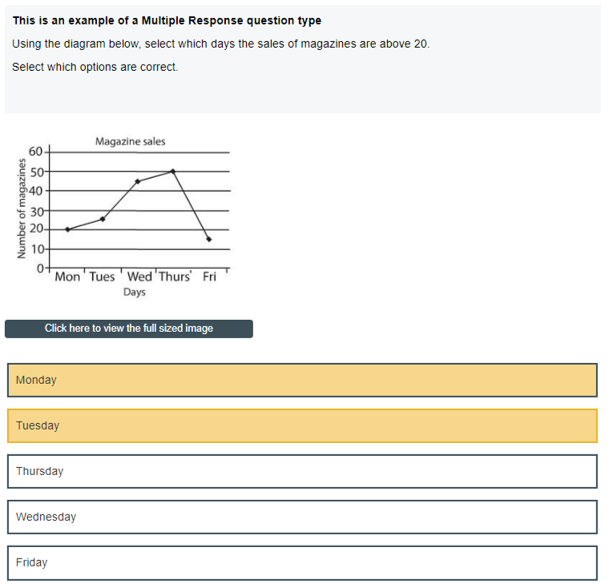
Multiple Response question: Select an option to record your answer. To add another answer, select a different option. To remove a selected option, select it again.
-
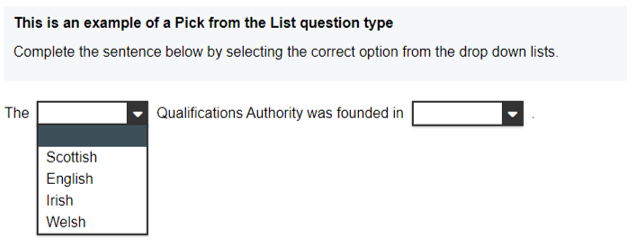
Select From a List question: Select the drop-down menu and choose your answer from the list. To change your answer, open the drop-down menu again and select a different option.
-
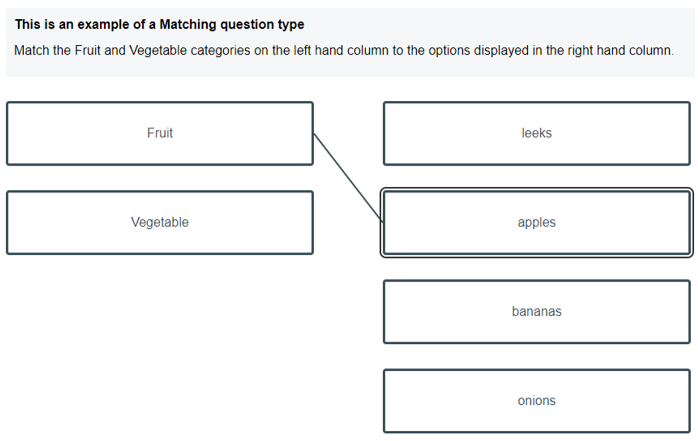
Matching question: Select an item from the left-hand column, then select the matching answer from the right-hand column. A line will connect the two. To delete the match, hover over the line and select it.
-
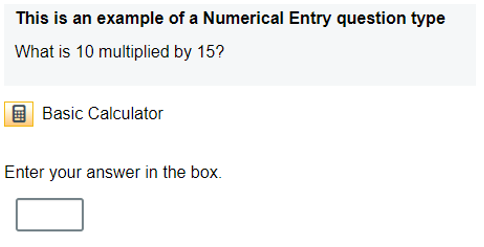
Numerical Entry question: Enter your answer as a number in the box as your answer.
-
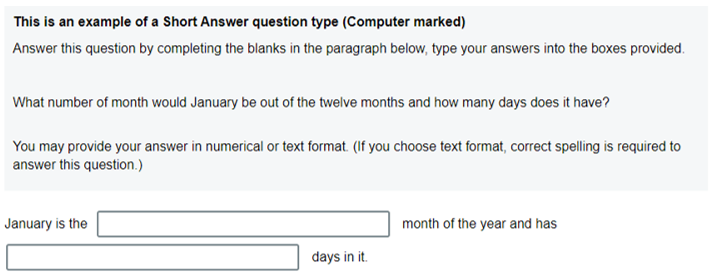
Short Answer question: Enter your answer in the answer box or boxes.
-
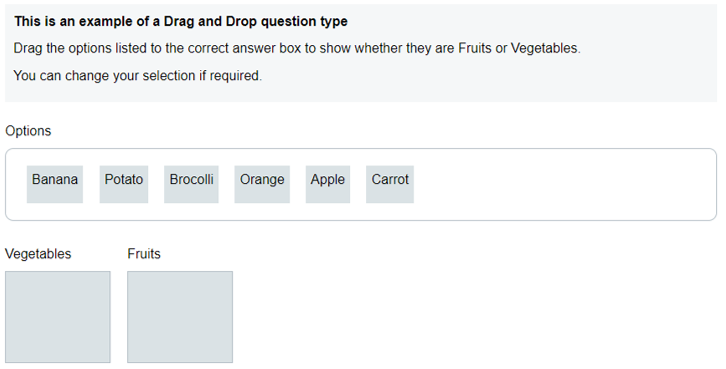
Drag And Drop question: Select and drag an item from the options box to an answer box. To change your answer, drag the item to a different answer box. To remove an answer, drag it back to the options box.
-
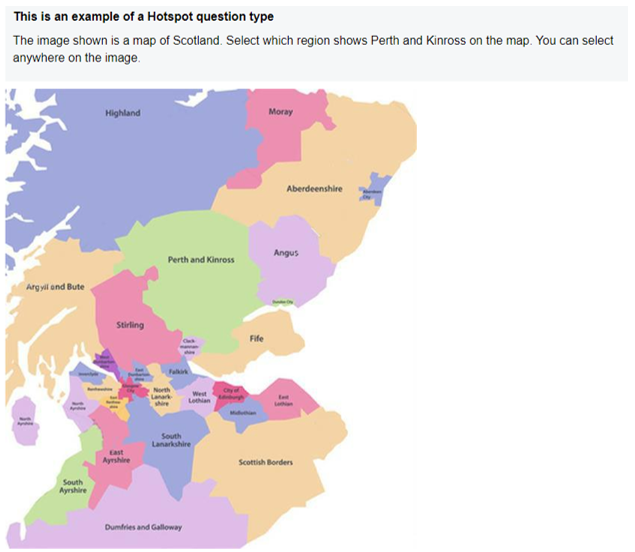
Hotspot question: Select a specific area of the image to record your answer. To change your answer, select a different area.
-
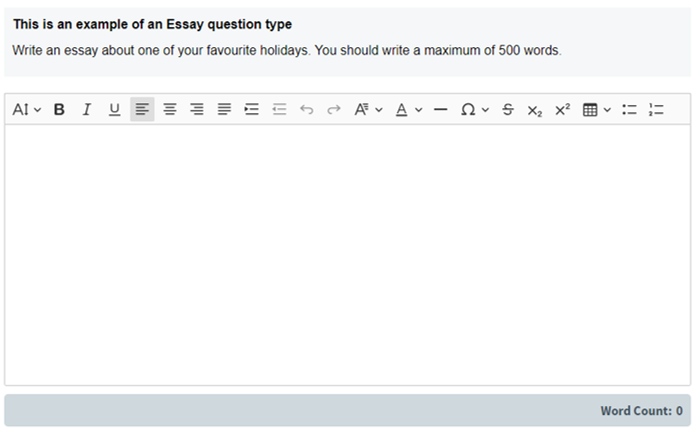
Essay question: Enter your answer in the answer box. A formatting toolbar may be available for you to use.
-
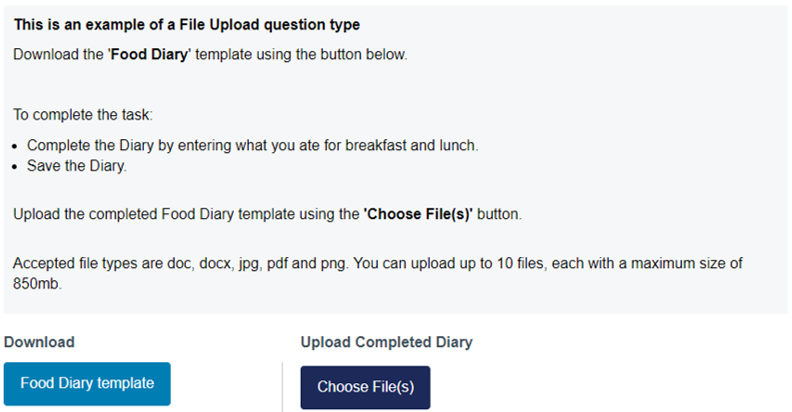
File Attach question: Complete your task using an external application, such as a word processor, spreadsheet or graphics software. Select the relevant button to download any files that have been provided, and then upload your completed file or files using the relevant button.